
More than 200 million people use a Mac on a daily basis. But most users are still stuck in beginner mode. Here are 15 incredible things you can do on Mac:
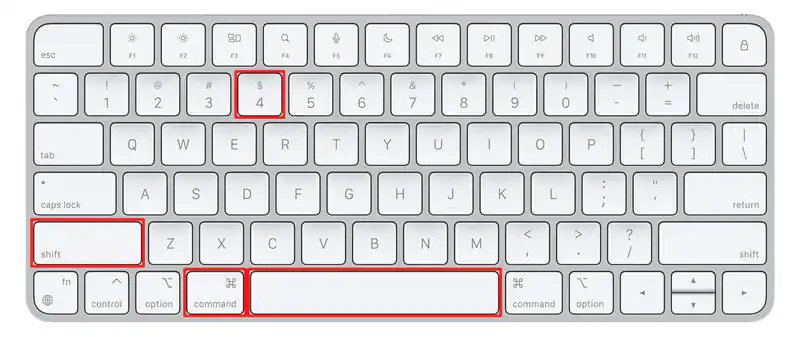
1. How to Take Screenshots on a Mac Command + Shift + 3 → Capture the entire screen Command + Shift + 4 → Capture a selected area Screenshots are automatically saved as PNG files on your desktop.
2. How to Reset Your Mac to Factory Settings - Back up your data using Time Machine or iCloud. - Sign out of iCloud, iMessage, and other Apple services. - Restart your Mac in Recovery Mode: Turn off your Mac. Hold Command + R and power it on until the Apple logo appears. - Erase
Before we continue, I want to thank @meetgamma for partnering with me on this post. 50M+ users are already using Gamma not only to create AI presentations, but also websites, social media content, documents, and more. 🔗 http://gamma.app
3. Edit and Align Your Photos Easily
4. Spotlight Search Press Command + Space to quickly search for apps, files, or even do calculations right from your desktop.
5. Swipe to Switch Apps Use three fingers to swipe left or right on your trackpad to quickly move between open apps. It makes multitasking faster and smoother.
6. Add Yourself to Your Presentation Easily include a video of yourself while presenting to make it more personal and engaging.
7. Use Hand Gestures in Video Calls Make your video calls more interactive by using hand gestures like a thumbs up or a wave to share reactions and express yourself clearly.
8. Add a Digital Signature to a PDF - Open the PDF in Preview. - Click "Show Markup Toolbar." - Choose the "Signature" icon to sign the document.
9. Enable Background Sounds - Go to the Apple Menu. - Select System Settings > Accessibility > Audio. - Turn on Background Sounds.
10.Use Split Screen View Work with two apps at once, like Mail and Reminders or Safari and Notes. To start, press and hold the green full-screen button in the top-left corner of a window.
11.Screen Recording Use the built-in Screenshot app to record your screen. Shortcut: Shift + Command + 5.
12. Mission Control Press Ctrl + Up Arrow to see all your open windows and desktops. Perfect for efficient multitasking.

13. Capture a specific window Cmd+Shift+4 then Space → selects the window → clean capture. The cursor changes to help you focus on it.
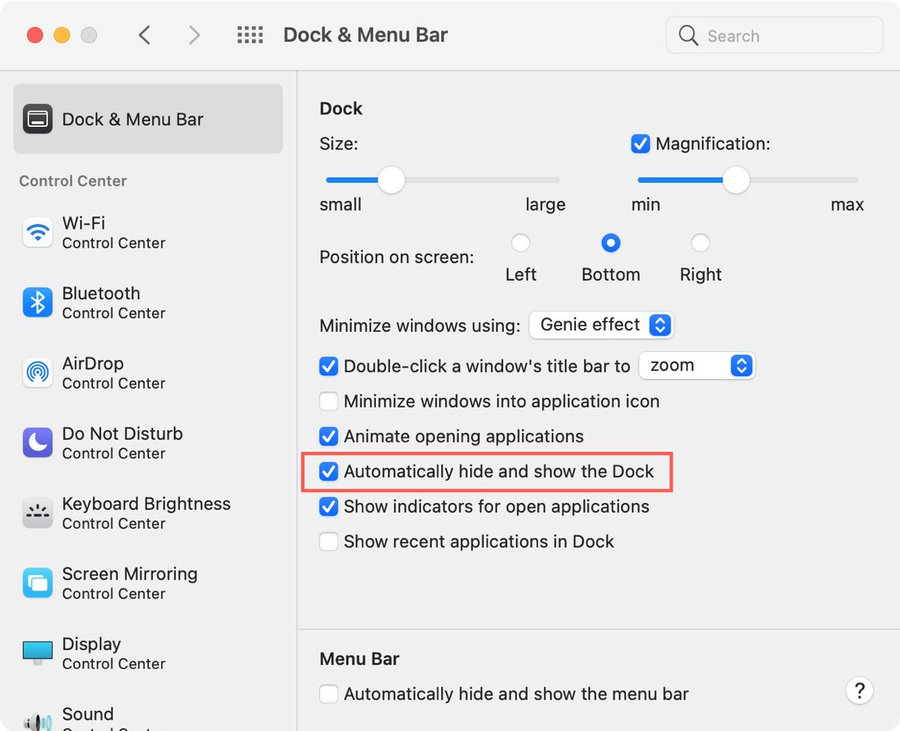
14. Show/Hide the Dock Cmd + Option + D toggles Dock visibility. More visual space when you need it.
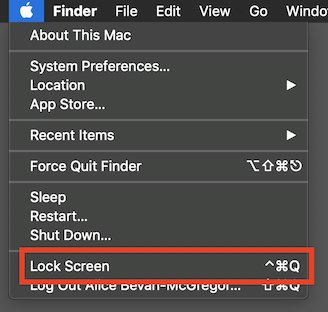
15. Lock your screen instantly Ctrl + Cmd + Q and it crashes instantly. Protect your privacy in a second.
That's a wrap. If this thread helped you: Repost it to help someone else. Follow @Ubermenscchh for more. – I Post about AI daily, Tech and Jobs. https://x.com/Ubermenscchh/sta...